
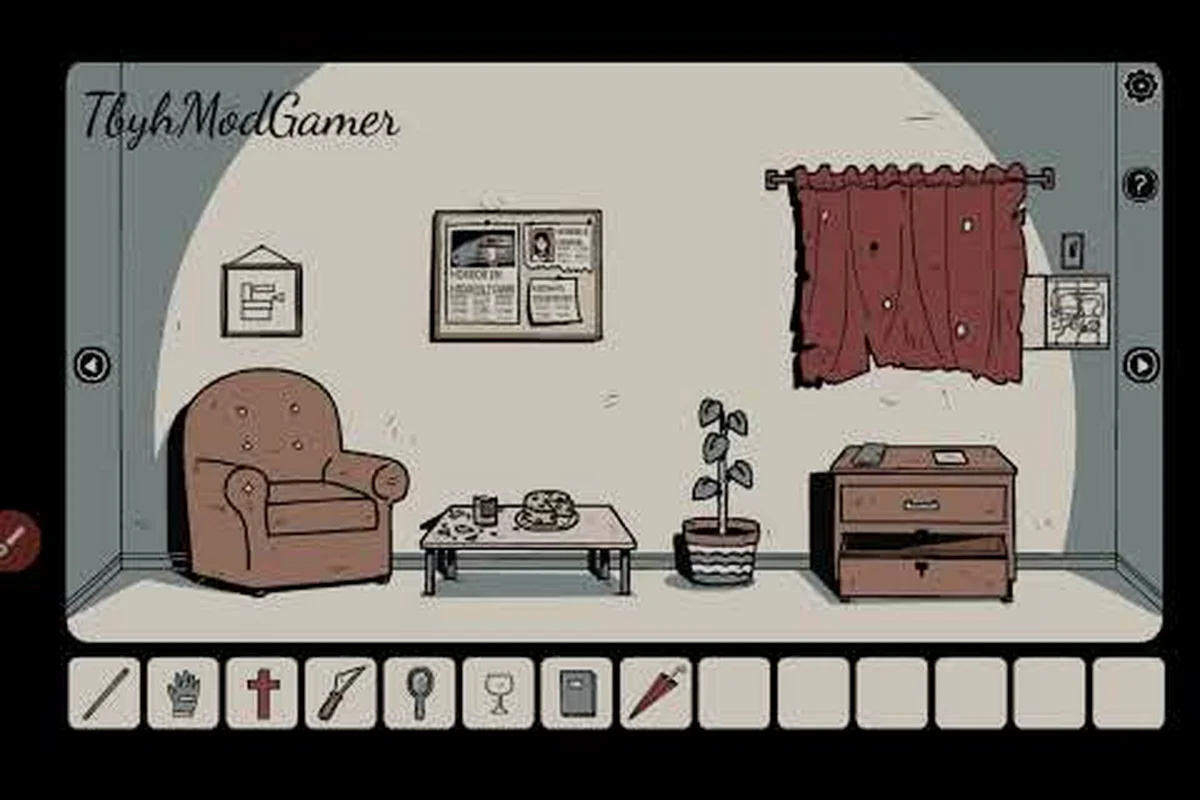
Manual Saves, Slots, and Rollbacks
The Girl in the Window uses a save-anytime system that freezes your current room state, inventory, and code progress the moment you trigger it, so a single misclick never forces a restart. This guide is built around the core question every new player asks early on: how to save in The Girl in the Window without losing an hour of puzzle work to a wrong code or a forced close.
Saving matters here because the game is a single-room escape room packed with layered riddles, drawer combinations, and a final keypad whose digits you typically only enter once. If you punch in a wrong code, the door does not open and you do not get a "try again" prompt — the wrong input simply blocks progress, and without a recent save the only recovery is replaying the entire chain of clues. Community walkthrough data on GameFAQs confirms that the manual save system is the single most-used safety net across the player base, especially during the jacket, umbrella, and drawer sequences that dominate the first half of the run.
Because progress is stored locally on your device, knowing the exact save trigger on each platform — mouse on PC, touch on mobile, or the in-game menu on Google Play and the App Store versions — is the difference between a clean 30-minute run and a frustrating full restart. The complete walkthrough covers the puzzle chain itself; this save guide focuses entirely on the safety net underneath it.
Where the Save Button Lives on Each Platform
The Girl in the Window does not bury saving behind a pause menu. A dedicated Save icon sits on the top-right corner of the screen at all times, so you never have to back out of a puzzle to protect your progress. On PC the icon responds to a single left click, and on mobile it responds to a single tap, which keeps the save flow identical across platforms even though the underlying control schemes differ.
Mouse Controls on PC and the Steam Release
Players using mouse controls get the fastest save feedback in the game. Hovering the cursor over the Save icon highlights it, and clicking it once writes a snapshot of your run to a local file. There is no confirmation dialog, no "Are you sure?" prompt, and no cooldown — clicking it twice in a row simply overwrites the previous snapshot with the latest one. According to community testing on the Steam forum, the file is written instantly on standard SSD hardware, which means you can save in the middle of dragging a drawer without any animation interrupting your input.
This is a meaningful design choice because the early puzzles require you to pick up and combine items rapidly. If you spot a clue you are not sure about, clicking the Save icon before guessing is faster than mentally running through the puzzle chain twice. Players who treat the icon like a "bookmark" — saving before every interactive object — report the smoothest runs in the The Girl in the Window Full Game Walkthrough - Dark Dome - Mobile game - PC comment threads.
Touch Controls on Google Play and the App Store
The touch controls version on Google Play and the App Store uses a long-press gesture on the same Save icon to prevent accidental triggers while tapping around the room. A short tap opens a small confirmation overlay, and a second tap on "Yes" inside the overlay commits the save. This is slightly slower than the PC version but prevents the most common mobile failure mode: tapping the icon while swiping across the top of the screen to drag an object.
The trade-off is intentional. Dark Dome designed the touch version so that a stray thumb cannot wipe out 20 minutes of progress, and the long-press requirement gives you a brief moment to confirm you actually want to overwrite your previous snapshot. Mobile players who switched from the PC version initially found this slower, but the consensus in user reviews is that the safety is worth the extra half-second.
| Platform | Trigger Gesture | Confirmation | Save Location | Typical Use |
|---|---|---|---|---|
| PC (Steam) | Single left click on icon | None | Local file, instant | Rapid saves between puzzles |
| Google Play (Android) | Tap then tap "Yes" | Overlay popup | Local device storage | Cautious saves before guesses |
| App Store (iOS) | Tap then tap "Yes" | Overlay popup | Local device storage | Cautious saves before guesses |
| Cloud (cross-device) | Manual export/import | None | User-controlled file | Transferring runs between devices |
When to Save: The Three Critical Moments
Saving at random intervals is a defensive habit, but saving at three specific moments in The Girl in the Window is what separates a smooth run from a frustrating one. Each of these checkpoints protects a different kind of irreversible action, and missing any one of them can cost you the run.
Before Entering Any Code
The first critical save moment is right before you type a code into the keypad near the door. Codes in The Girl in the Window are derived from layered clues — a jacket sleeve, a hidden number, a drawer combination — and once you commit a code, the game does not let you undo a wrong entry. Saving immediately before each code attempt means a wrong guess costs you only a reload, not the entire clue chain. Players who skip this save typically report getting stuck at the door with no recoverable state, which forces a full restart from the room entry.
After Solving a Major Puzzle Layer
The second critical moment is after you solve a layer that unlocks new areas of the room. Examples include opening the drawer that reveals the umbrella, lifting the jacket sleeve that hides a number, and rotating the painting that exposes the second code digit. Each of these actions is reversible in the sense that the object returns to its original state, but the inventory item or clue you gained from it does not reset. Saving here means a crash, a forced close, or an accidental app switch cannot undo the cumulative progress of the last several minutes.
Right Before Inspecting a Suspicious Object
The third moment is right before clicking a new object for the first time. First-time inspections sometimes trigger a one-shot animation or dialogue that the game does not let you replay. Saving before the inspection means you can reload to re-read the clue if you missed a detail. Community data from the Trailer: The Girl in the Window comment section suggests that first-time object interactions are the most common source of "I clicked too fast" regret, particularly for the typewriter and the framed photograph on the back wall.
| Save Moment | Protects Against | Reload Cost | Frequency |
|---|---|---|---|
| Before entering a code | Wrong code blocks progress | Seconds | Every code attempt |
| After solving a major layer | Crash, forced close, app switch | Seconds | Every 3-5 minutes |
| Before inspecting a new object | Missed clue detail | Seconds | Every new interaction |
| Before the final door attempt | Locked ending with no retry | Minutes | Once per run |
How to Reload After a Wrong Code or Mistake
The reload system in The Girl in the Window is just as simple as the save system, but it is the part most new players miss because there is no on-screen "Load Game" button by default. Loading is triggered by closing and relaunching the game, which reads the most recent local save file automatically. There is no save-slot picker, no menu, and no confirmation — the game simply resumes from the last save icon click.
The Force-Close Reload Trick
If you have made a mistake you cannot undo and you have a recent save, the fastest recovery is the force-close reload trick: close the game completely (swipe away on mobile, Alt+F4 on PC), reopen it, and the title screen will load the most recent save within a few seconds. On Steam, this means clicking the X and reopening from the library; on Android, this means swiping the app from the recents list; on iOS, this means the standard app-switcher close.
This trick is what experienced players mean when they say "just reload" in walkthrough comments. It bypasses the in-game pause menu entirely, which is important because The Girl in the Window does not include an in-game "Load" button by design. The developer treats the local save file as the single source of truth, and force-closing is the only official way to read it back.
What Progress Carries Between Sessions
The save system preserves room state, inventory, code progress, and dialogue flags across sessions, which means everything you have clicked, opened, and combined is restored when you reload. What it does not preserve is your real-world session time, your in-game hint counter, or any cosmetic settings like sound volume — those reset to defaults on every launch. This is intentional, because the game is designed to be completed in a single 30-45 minute sitting, and the hint counter is a per-run tool rather than a persistent stat.
Players who want to abandon a run and start fresh can simply delete the local save file from their device's app data, but most players prefer the force-close reload trick because it is non-destructive. If you reload and immediately realize you want to keep going from where you were, you can do so without any consequence — the next save click will overwrite the snapshot you just loaded.
| State Element | Persists Across Sessions | Notes |
|---|---|---|
| Room state (drawers, paintings) | Yes | Restored to last-saved configuration |
| Inventory items | Yes | All picked-up items remain |
| Code entry progress | Yes | Codes entered correctly stay unlocked |
| Dialogue flags | Yes | One-time dialogue does not replay |
| Session timer | No | Resets on every launch |
| Hint counter | No | Resets per run |
| Sound and language settings | No | Returns to defaults |
Saving Across Devices and Cloud Transfers
Because saves are stored locally rather than in the cloud, moving your run between devices requires a manual export step that is easy to miss. The Girl in the Window does not auto-sync between your phone and your PC, so a save made on one device will not appear on another unless you deliberately transfer it. This is a common source of confusion for players who start a run on mobile during a commute and want to finish it on PC at home.
The Manual Export-Import Workflow
To transfer a save, you need to locate the local save file in your device's app data, copy it to a shared location (cloud storage, email, or a USB cable), and place it into the equivalent folder on the target device. On Android, the file lives in the app's private storage directory; on iOS, it is sandboxed inside the app and can only be exported through a Files app share; on Steam, it lives in the userdata folder under the app ID.
This workflow is clunky by design, because The Girl in the Window is a short single-session game and the developer prioritized local reliability over cross-device convenience. According to community reports on the Steam discussion board, most players who want cross-device play simply complete the run on one device rather than going through the export process, which takes longer than the average run itself.
Why There Is No Cloud Save
The lack of cloud save is a deliberate design choice tied to the game's structure. The Girl in the Window is a single-room escape that most players complete in one sitting, so the developer focused save engineering on local reliability and instant writes rather than on cross-device sync. The trade-off is that the local save is extremely robust — it survives app updates, OS restarts, and even device reboots, because it is written to a stable file path immediately on click.
| Device Pair | Transfer Method | Typical Time | Practical Use |
|---|---|---|---|
| Android to PC (Steam) | Manual file copy via cloud | 5-10 minutes | Rare; most finish on one device |
| iOS to Android | Files app share to email | 5-10 minutes | Rare; not worth the effort |
| PC (Steam) to mobile | Reverse the export process | 5-10 minutes | Very rare; local save is faster |
| Same device, different OS upgrade | Save is preserved on local storage | 0 minutes | Common and automatic |
Frequently Asked Questions
Does The Girl in the Window have an autosave feature?
No, The Girl in the Window does not include an autosave feature, which is why the manual save icon is so important. Every save must be triggered by clicking or tapping the icon in the top-right corner, and the game never writes a save file in the background. If you close the game without clicking the icon, your progress since the last manual save is lost.
Can I have multiple save slots to try different puzzle solutions?
The Girl in the Window supports a single active save slot, not multiple slots, so you cannot branch your run to test different code guesses in parallel. The save system overwrites the previous snapshot every time you click the icon, which means every reload returns you to the same single most-recent state. Most players work around this by saving immediately before each guess and reloading if the guess fails.
What happens if I close the game without saving?
If you close The Girl in the Window without clicking the save icon, the game reopens to the room's initial state on next launch, with no inventory items and no solved puzzles. According to community testing, this is the most common cause of "I lost 20 minutes of progress" complaints, especially on mobile where the OS can close background apps aggressively. Saving after every major puzzle layer prevents this entirely.
Is the save file shared between the Steam and mobile versions of the game?
The save file is not shared between the Steam and mobile versions because each platform stores its data in a different sandboxed location. A run started on the Google Play version cannot be continued on Steam without a manual export-import step, and vice versa. The App Store version is similarly isolated. Most players treat each platform as a separate game instance and complete the run on whichever device they started on.
How do I know my save actually worked?
The Girl in the Window does not show a "Save Complete" popup, so the only way to confirm the save worked is to check the file timestamp in your device's app data or to force-close and relaunch. The game loads from the most recent save on every launch, so a quick force-close test is the most reliable confirmation. If the game reopens to your exact room state and inventory, the save was successful.
For related coverage, read Beginner Guide and Complete Guide. The beginner guide explains the core inspect-and-combine loop that every save point depends on, while the complete guide shows how progress carries across all rooms, so you always know what state your next launch will restore.